Cybersecurity Newsletter #5: Passwords Aren’t Enough and MFA Is Now Required
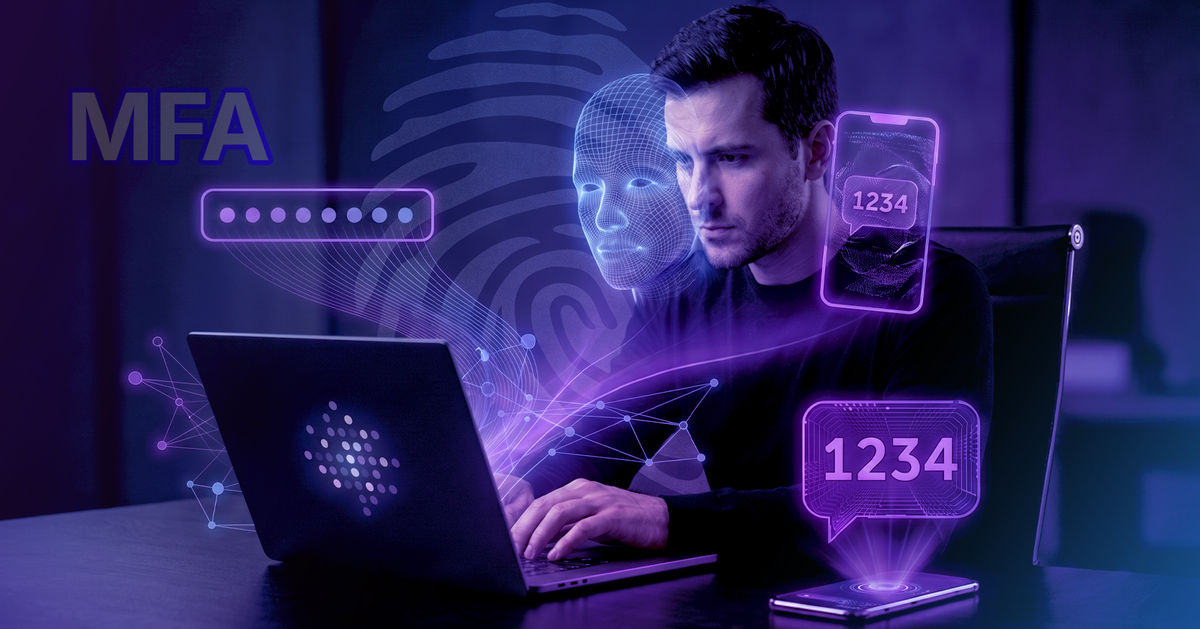
July 2026 Cybersecurity Update | ODVI DTT – DTT IT Department
Hello Team!
I hope everyone is having a productive month! This July, we are taking a massive step forward in strengthening our company’s defenses.
Starting this week, we will officially be enforcing Multi-Factor Authentication (MFA) for all corporate accounts across Oak Drive Ventures Inc.
You might already be familiar with MFA from your personal life—like when your online banking, email, or social media accounts require you to enter a 6-digit code sent to your phone after you type in your password. Because protecting our company data is a top priority, we are bringing this gold standard of security to ODVI.
Here is what you need to know about what MFA is, the official policy guidelines, and what to expect this week.
What is Multi-Factor Authentication (MFA)?
Traditionally, security relied on just a single factor: something you know (your password).
MFA is a security system that requires two separate forms of identification to verify who you are before letting you log in. It combines:
- Something you know: Your corporate password.
- Something you have: A physical device, such as your smartphone, to receive a secure code or approval prompt.
Why This Change is Vital: Passwords Alone Aren't Enough
In the past, a strong password was enough to keep an account safe. Today, cybercriminals use automated software capable of testing millions of password combinations per second. Furthermore, if anyone accidentally falls for a clever phishing link, hackers instantly grab that password.
If a bad actor gets a password, they are halfway through the door. MFA is the extra deadbolt that stops them cold.
| The 99% Statistic: According to global security data from Microsoft's Digital Defense Report, enabling MFA blocks over 99% of account compromise attacks. Even if a hacker on the other side of the world correctly guesses your password, they are completely blocked because they don't hold your physical phone. |
The Official MFA Policy Guidelines
To ensure a smooth and secure rollout, management has approved the official MFA Compliance Policy. Please take note of these core rules:
- Mandatory Participation: MFA is no longer optional. Access to ODVI corporate networks, emails, and internal applications will strictly require MFA verification.
- Authorized Devices Only: You must link your MFA to a secure personal smartphone or a company-issued device. Sharing your authentication device or allowing someone else to approve prompts for your account is a strict policy violation.
- Immediate Reporting for Lost Devices: If the smartphone linked to your ODVI MFA is lost, stolen, or replaced, you must notify the DTT IT Department immediately so we can revoke its access tokens and secure your account.
What to Expect This Week
As we roll out and enforce this new policy, the transition will be simple:
- The Setup: When you log into your ODVI corporate accounts this week, you will see a prompt guide you through a quick, one-time setup to link your device.
- Never Approve Unexpected Prompts: Once set up, if your phone ever buzzes with an MFA code or approval request when you are not actively trying to log in, deny it immediately and alert IT. It means someone else has discovered your password.
- Treat MFA Like Cash: Never share your verification codes with anyone—not even someone claiming to be from IT. The real DTT IT department will never ask you for an MFA code.
|
 Reminder: Lock Your Computer
 Windows: Win + L |
  Mac: Cmd + Ctrl + Q
Cybersecurity is everyone's responsibility. Thank you in advance for your cooperation as we roll out this vital upgrade to protect our workspace.
Quick Access Links
| MFA Compliance Policy View the new mandatory guidelines (Log in with ODVI email) |
| DTT Policy Portal View all company policies (Log in with ODVI email) |
| Newsletter Archive Browse past newsletters (Log in with ODVI account) |
| Raise an IT Concern Submit IT support requests (Log in with ODVI email) |
If you need help setting up your MFA or have any questions during the rollout, please reach out to me directly at: lprosima@oakdriveventures.comPosts